
Accessibility in Jabberblocky
Last updated: June 17, 2026
This page walks through Jabberblocky's accessibility features.
Summary
- A High Contrast, single-color display mode.
- Text and interface contrast meet WCAG 2.2 AA
- The interface follows your device's Light or Dark appearance
- No information conveyed by color alone.
- Animation is reduced when your device's Reduce Motion setting is on
Color and Contrast
High Contrast mode
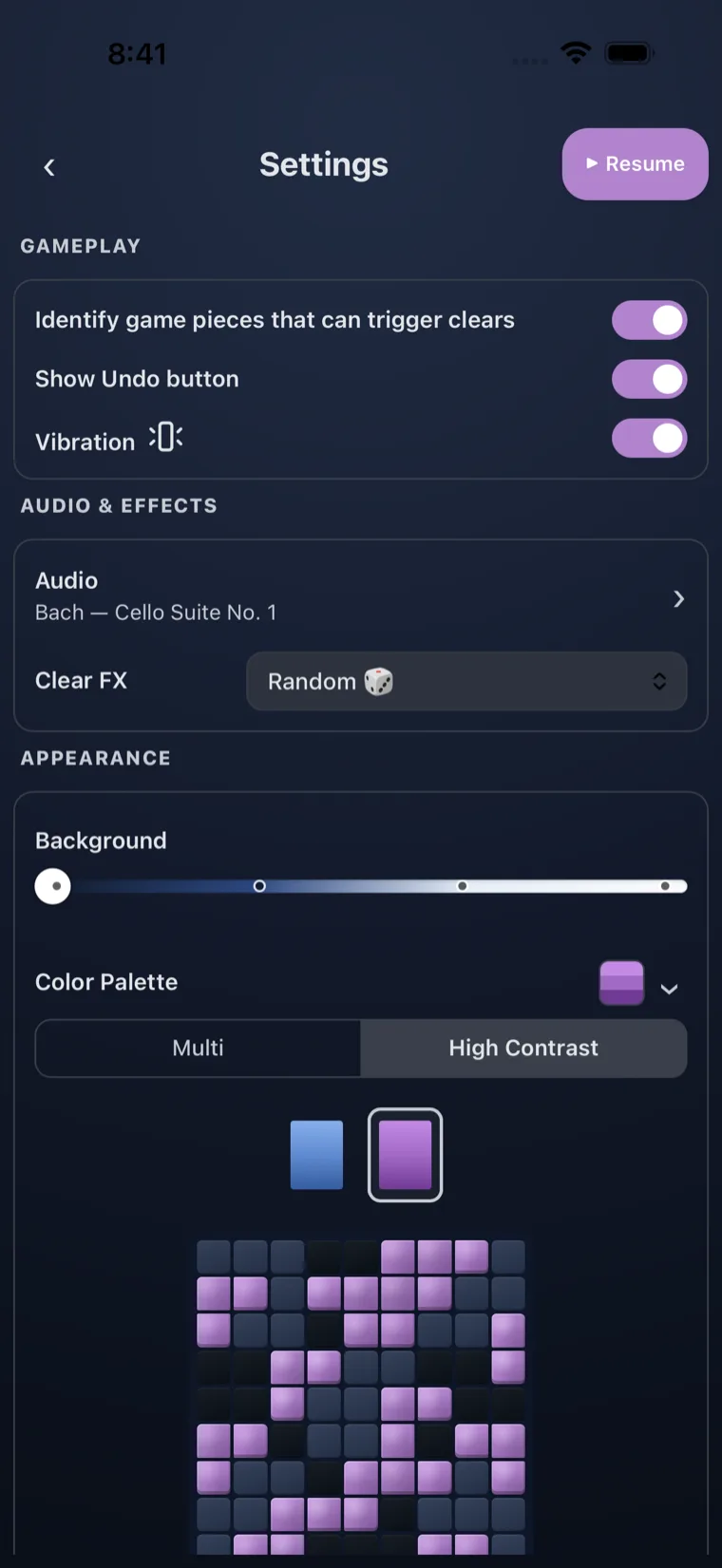
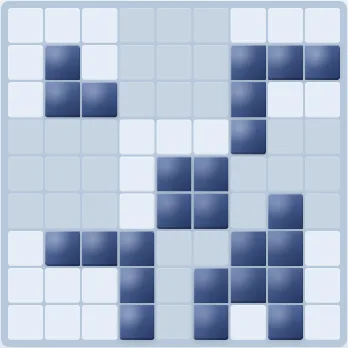
Jabberblocky includes a High Contrast display mode that renders the board and pieces using a single color in light and dark steps. Two single-color options are available: Sapphire (blue) and Amethyst (purple). The mode is designed so that filled and empty cells, piece edges, and line boundaries remain distinguishable for players with color-vision deficiencies or low vision.
You can turn it on in Settings › Appearance › Color Palette by selecting High Contrast. Switching between the standard palette and High Contrast does not change any of your other settings.
WCAG 2.2 contrast standards
Text and interface elements are designed to meet the WCAG 2.2 AA contrast standard (a ratio of at least 4.5:1 for text against its background). The High Contrast mode's color steps are additionally checked so that board elements remain distinguishable when simulated for common forms of color-vision deficiency. This corresponds to Apple's "Sufficient Contrast" support.
Light and Dark interface
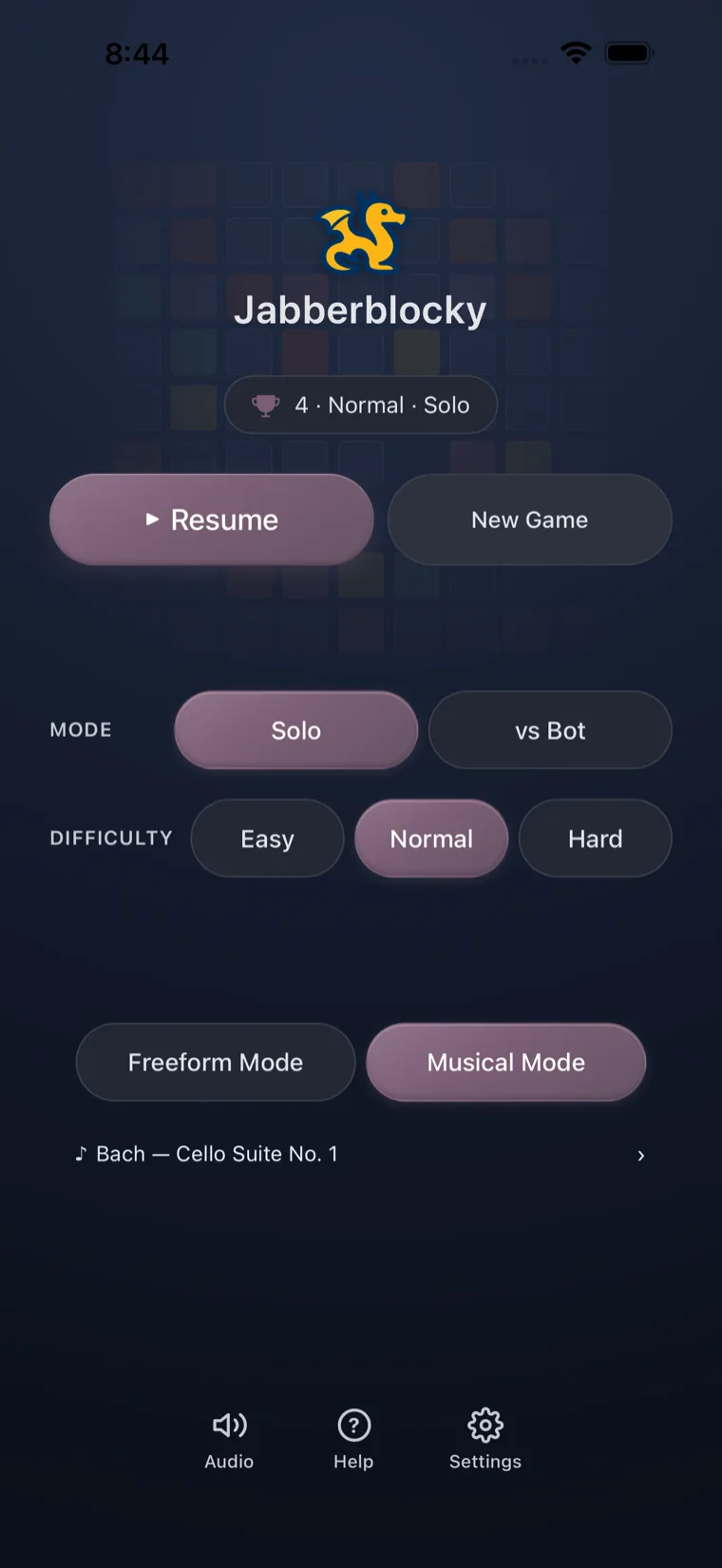
On a new installation, Jabberblocky matches your device's system appearance: if your device is set to Dark Mode, the game opens with a dark interface; otherwise it opens light. You can also choose a different look at any time in Settings › Appearance, and your explicit choice is kept. This corresponds to Apple's "Dark Interface" support.
Color is never the only cue
No gameplay information depends on color alone. Whether a piece can be placed is shown by position: a piece that is dropped on an invalid location returns to the tray rather than being placed. Filled and empty cells differ in fill and border, not only in hue, and piece identity is conveyed by shape. This corresponds to Apple's "Differentiate Without Color Alone" support.
Motion and Visual Intensity
Reduced motion
When your device's Reduce Motion setting is turned on, Jabberblocky reduces or removes non-essential animation. This includes piece-movement animations, the return animation when a piece cannot be placed, and celebratory effects. The setting is read from your device; there is no separate switch inside the game. This corresponds to Apple's "Reduced Motion" support.
Flashing and photosensitivity
Jabberblocky's line-clear effects are designed to avoid rapid flashing. We believe the visual effects that play when you clear lines meet the recognized standard for flash safety — WCAG 2.2 success criterion 2.3.1 (Three Flashes or Below Threshold).
Touch Targets
Interactive controls are sized for touch. Sizing of every control is an area of ongoing review.
Sound
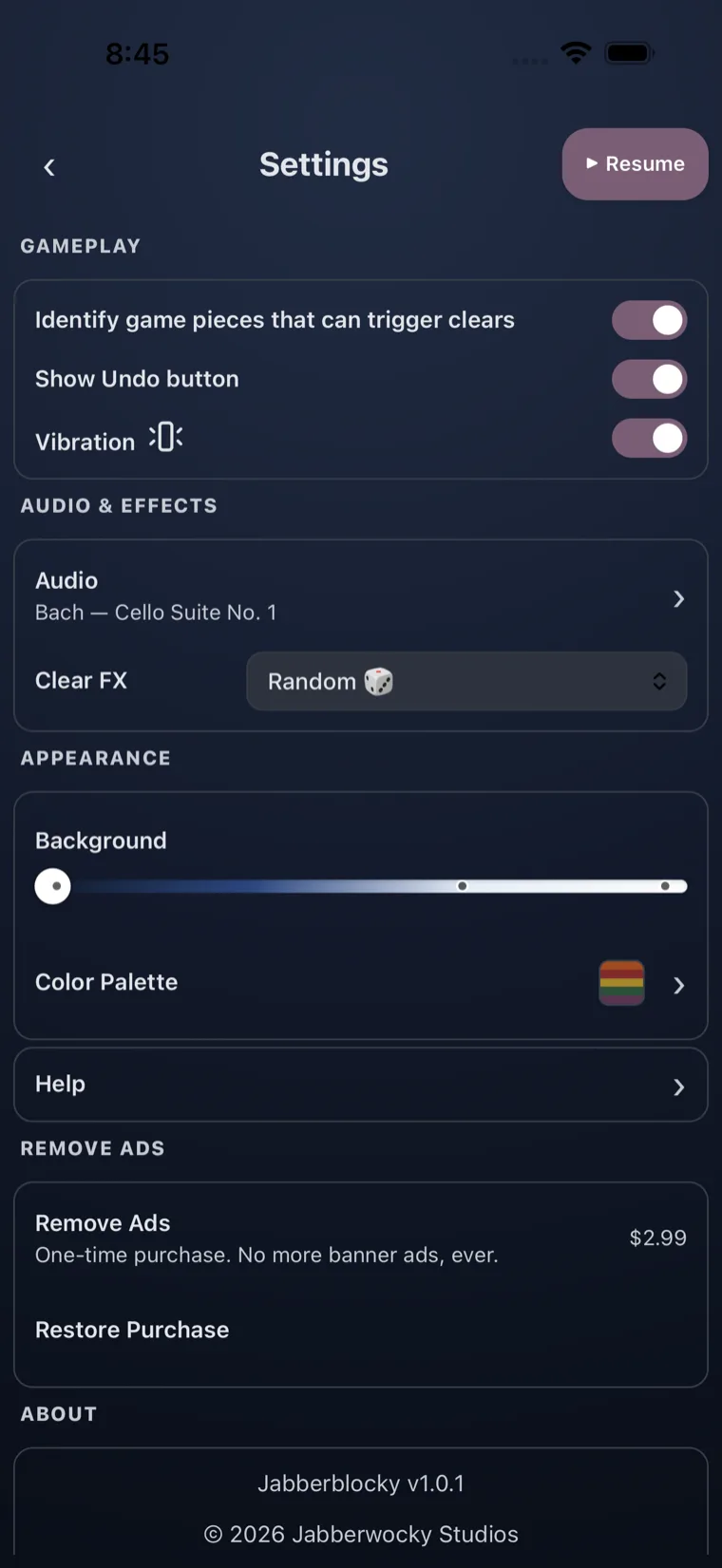
Sound is optional in Jabberblocky, and all information needed to play is shown on screen. Placements, line clears, scoring, and the end of a game are all communicated visually. You can turn all sound off with the audio toggle on the Audio screen, and you can turn vibration (haptic feedback) on or off in Settings. The game does not play audio until you take an action.
Using Your Device's Accessibility Settings
Two of the features above are controlled by your device rather than inside the game. To use them, change the setting on your device and then open Jabberblocky:
- Reduce Motion — iOS: Settings › Accessibility › Motion › Reduce Motion. Android: Settings › Accessibility › Remove animations (wording varies by device).
- Dark appearance — iOS: Settings › Display & Brightness › Dark. Android: Settings › Display › Dark theme.
Feedback
If you have questions about Jabberblocky accessibility or feedback to help us improve it, please contact us.
Changes to This Page
We may update this page as the app's accessibility features change. When we do, we will update the Last updated date above.